
01
The date and the dollar share a WBS
A slipped switchgear activity is visible next to the cost code it threatens.
Schedule
01
Gantt
Activities, WBS summaries, milestones, critical path. Day, week, month, quarter or year.
02
Baseline
Grey bars under the activity. Set baseline freezes today’s dates. Slippage is the gap.
03
Dependencies
Finish-to-start, start-to-start, finish-to-finish, start-to-finish. Link them on the activity.
04
Edit
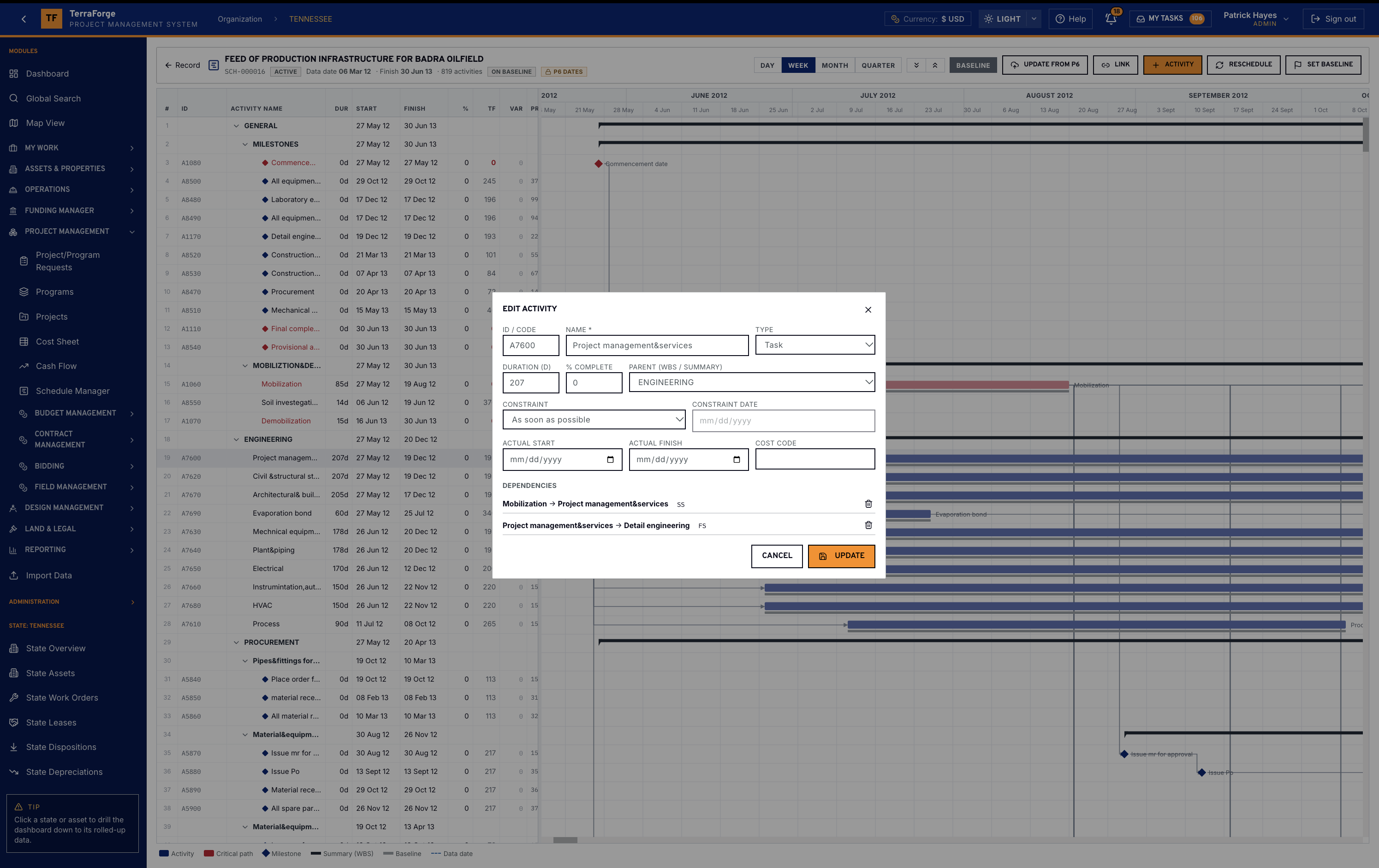
Code, duration, percent complete, parent WBS, constraint, actual dates, cost code.
05
Update from P6
A newer XER or XML, matched on activity ID. The TerraForge baseline can be kept.
01
A slipped switchgear activity is visible next to the cost code it threatens.
02
Critical path and float roll into the programme view the owner uses to re-sequence a campus.
03
P6 comes in by XER or XML and updates in place. The owner still reads the schedule here, against a TerraForge baseline.
The Gantt
The schedule of record is this planner. Activities, duration, start, finish, percent complete, total float, variance. Critical path in red. Milestones as diamonds. Baseline under the bar when the baseline toggle is on. The data date is the vertical line.
Edit activity is the record: the code, the name, the type, duration, percent complete, the parent WBS, the constraint, actual start and finish, a cost code, and the dependencies. On an import the code is the P6 activity ID. Link, add an activity, reschedule, or set baseline — on this record.
Update from P6 re-imports a newer XER or XML into the same schedule. Changed dates and progress apply. New activities are added. Missing ones are flagged. Nothing changes until the import is confirmed. Keep the TerraForge baseline and slippage stays computed here. This is not a live two-way link.
The programme team owns it. Same navigation at portfolio, programme and project. Same My Tasks inbox. App Builder publishes the next step on a Tuesday, without a vendor ticket.
Where it sits
The schedule is a project record. The programme dashboard reads schedule health across the projects in that campus. The portfolio review sees which programme is carrying the wave’s date.
Field RFIs and the risk register reference the same activities. The Operations Wall can show the consequence in a portfolio review. The Gantt remains the record.
What ships
Your cost codes, your workflow, your campuses. Write sales@terraforge.build.